



Using Filezilla with your website on the ssweb.us server [last update 10/27/2016]
Before you can do the steps below the Filezilla program must be installed on your computer. For installation instructions go to we_dev_start_at_home.html
Once Filezilla is installed you will need to configure Filezilla to connect to the ssweb.us server. Instructions for this are given below.
After Filezilla is configured to connect to the ssweb.us server you will need to ask Harry Baya for:
You can then use Filezilla to connect to the ssweb.us server and tranfer files into the folder associated with your website.
[NOTE: Do not open any other folders on the server. Users who open folders other than their website folders will be denied future access to the ssweb.us server]
How to configure Filezilla to connect to the ssweb.us server:
| 1. Start the Filezilla program | |
|
| 2. Click on the "File/Site Manager" menu iterm | |
|
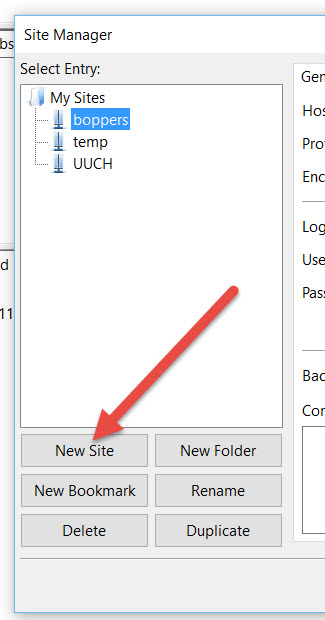
| 3. Click on the "New Site" button | |
|
| 4. Filezilla will set up a form for the new site. | |
|
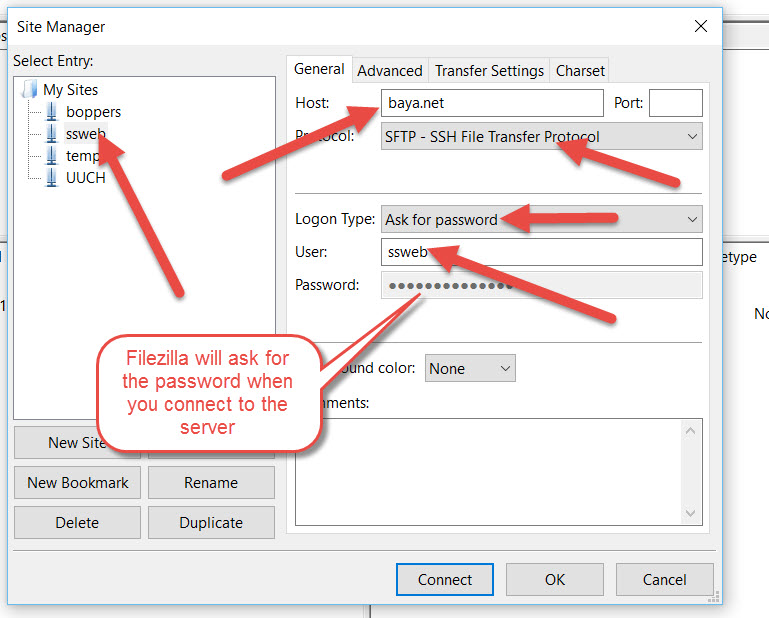
| 5. Enter Data and make changes shown here | |
|
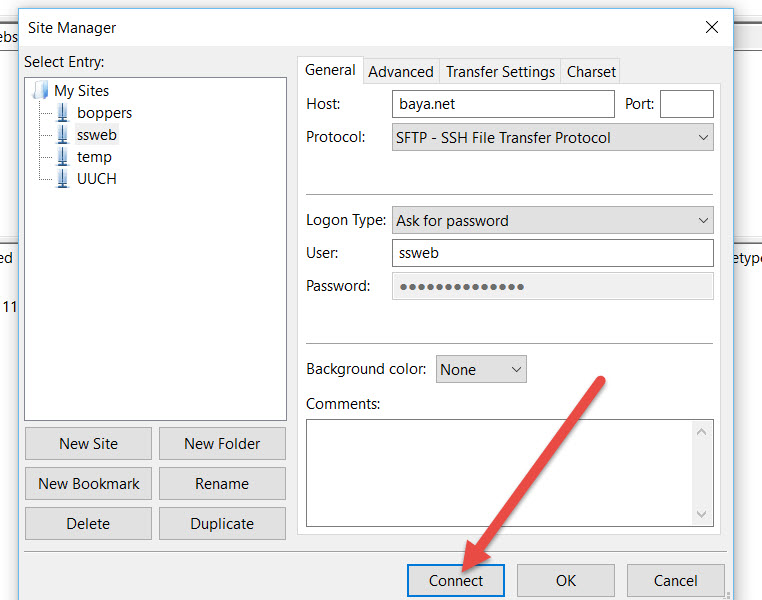
| 6. Click the "Connect" button | |
|
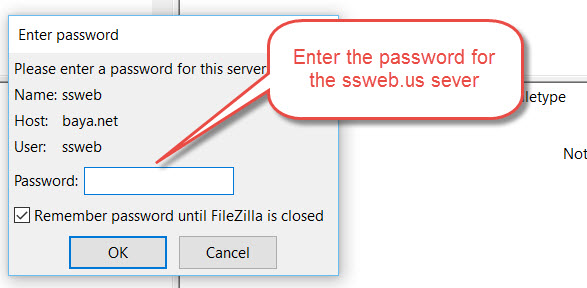
| 7. Enter the password | |
|
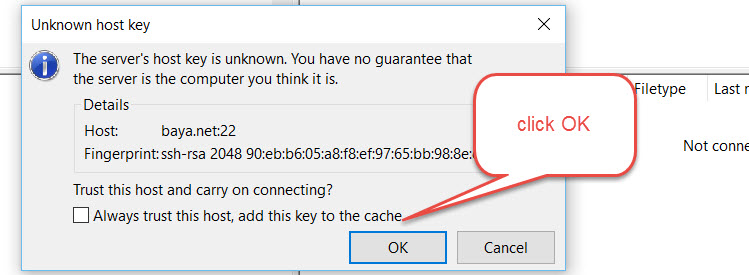
| 8. Click OK to connect to this server | |
|
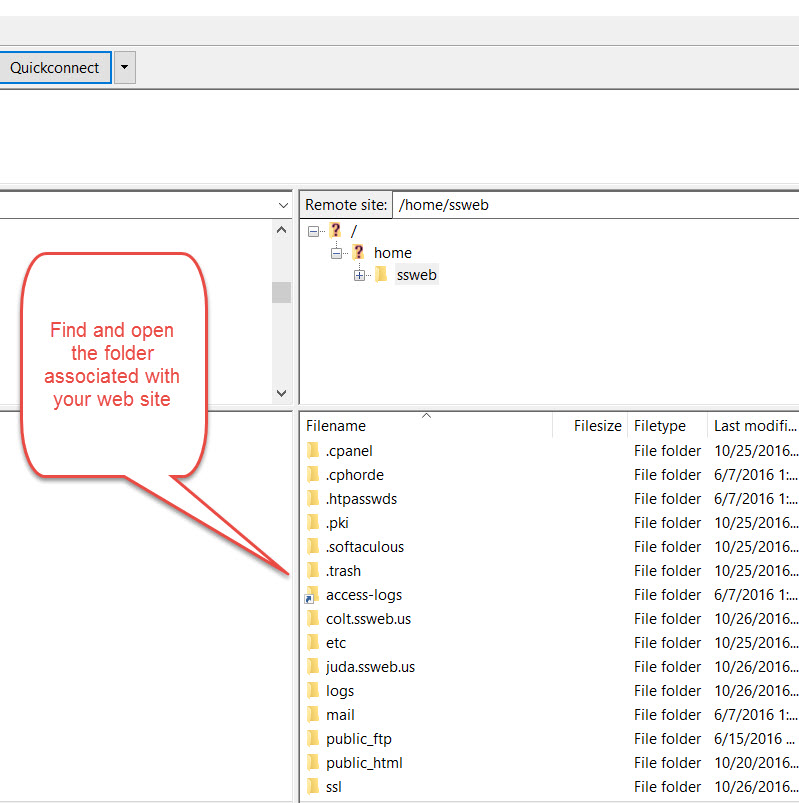
| 9. Find the folder associated with your web site | |
|
| 10, Transfer the files from your hard drive to your folder on the ssweb.us server | |
|